Chan manual
Terminal & teams
Use terminal commands, rich prompts, drafts, program status, and agent teams.
The terminal and its commands
Open New terminal from Computers, a pane menu, or the command launcher. A standalone terminal works with the machine's filesystem; a workspace terminal also has project search, graph, export, and team commands. Pane and window controls are covered in Navigation.
chan manages workspaces and devservers. cs (chan shell, also available as chan shell) controls the window and terminal sessions you are working in. Run cs --help or add --help to a subcommand for its options.
$chan open .
$cs open README.md
$cs open .
$cs terminal new
chan open . registers and serves the current directory as a workspace; use --here when intentionally opening a subdirectory of a repository. cs open README.md opens a file in the current window, and cs open . opens its file browser. Paths refer to the machine hosting the terminal, including on a devserver.
Control terminal tabs
$cs terminal new --tab-name build
$cs terminal list
$cs terminal scrollback --tab-name build
Give a terminal a name to address it later. cs terminal write sends input, cs terminal restart restarts a session, and cs terminal close ends it. Use --tab-name to select a named session, or --tab-group for a group where supported. scrollback selects one tab by name, not a group. cs terminal list --json provides the session roster for scripts.
Clipboard shortcuts in the terminal are Cmd+C/Cmd+V on macOS and Ctrl+Shift+C/Ctrl+Shift+V on Windows and Linux. The cs commands below also transfer images and rich text.
Compose and transfer
Rich Prompt
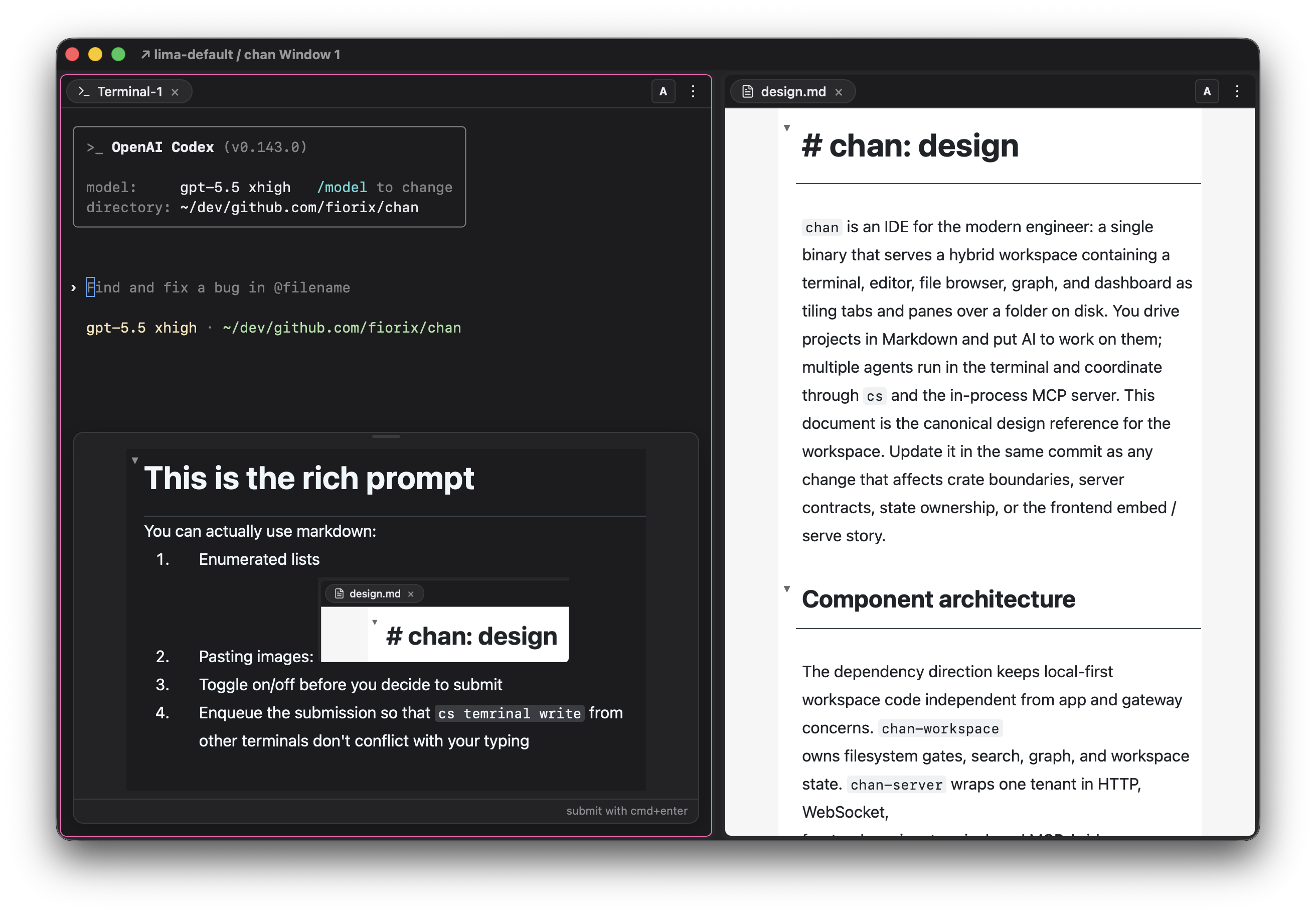
When a terminal needs more than a line, like pasting images into a remote agent or editing a longer prompt, bring up the Rich Prompt bubble over the terminal: press Cmd+Shift+P on macOS (Ctrl+Shift+P on Windows and Linux), or find "Show/Hide Rich Prompt" in the command launcher and the terminal's right-click menu. Write Markdown, paste images, and submit with Cmd+Enter on macOS or Ctrl+Enter elsewhere; submissions are queued so writes from other terminals (cs terminal write) do not conflict with your typing. Terminals spawned with a supported agent automatically select its submit encoding; custom launchers can set CHAN_AGENT. Supported names are agy, claude, codex, gemini, kimi, muse, and opencode. The command-line equivalent is cs terminal write --submit=<agent>.
Copy and paste freely
The commands cs copy and cs paste integrate every chan terminal, standalone or workspace, local or on a devserver, with your clipboard: cs copy < photo.png puts stdin on the clipboard (plain text, HTML, or an image), and cs paste > file.png writes it back out as raw bytes. The clipboard belongs to the machine viewing the window, while the command runs wherever the terminal lives: use it locally like pbcopy/pbpaste, copy on a devserver and paste into any app, or move content across devservers by copying on one and pasting on another.
Download and upload freely
Similarly, cs download {path} downloads a file or a tarball of the target directory, and cs upload {path} imports files into the target directory through a file picker. Both show the same progress UI as the Inspector, and . means the current directory. This works in local and devserver terminals alike, so files flow between your machine and any chan session.
Drafts and untitled-1/draft.md
Choose New draft from a pane menu or the command launcher. A draft appears as Drafts/untitled/draft.md, then Drafts/untitled-1/draft.md and higher numbered names as needed. It is a Markdown document with a companion directory for attachments. Rich Prompt uses a real draft too, so a longer prompt and its pasted images can be edited together before submission.
Drafts in the file browser is a separate area. In a workspace, its files live in chan's workspace metadata, outside the project directory. The displayed Drafts/… path is not a repository-relative shell path. Drafts stay out of project search and the project graph until you save them into the workspace.
Open a draft from the Drafts group to keep editing. Closing it offers Save to Workspace (Save to Disk in a standalone window), Discard Draft, or Cancel to keep editing. Saving a draft with attachments carries the companion files with it. A directory named Drafts that you create inside your repository is ordinary project content.
Program status: OSC 7501
Programs can report whether they are working, done, blocked, or in error using OSC 7501, the Program Status Protocol. Chan shows activity and progress in the terminal tab and an attention marker when a program needs you. Open the terminal tab's program status inspector to read the reported title and message.
It is on by default; turn it off in Settings → Terminal → Program status (OSC 7501). Programs must emit reports for their state to appear; ordinary terminal output does not supply those records. Shell scripts can use cs terminal status:
$cs terminal status working --id build --app cargo --progress 40 --sleep 10
$cs terminal status blocked --id build --kind permission --msg "Waiting for approval" --sleep 10
$cs terminal status done --id build --msg "Tests passed"
$cs terminal status clear --id build
States are idle, working, done, blocked, error, and clear. A blocked report can name permission, question, or auth; progress is an integer from 0 to 100 for working or blocked reports.
Each report replaces that record, including its optional fields. Use --id to give a subprocess its own record instead of replacing its parent's root record. clear --id build removes that record and its children. The status also appears in cs terminal list; its JSON form includes the reported text for orchestration.
--sleep 10 writes once, then waits ten seconds so you can inspect a transient state from an interactive shell. It accepts whole seconds from 0 to 86400; omitted or 0 returns immediately. Expiry and Ctrl-C write nothing further. Done and error stay until replaced or cleared. Transient states follow the terminal's foreground-job and prompt rules; waiting on the control-socket route keeps only the sender alive.
Idle and clear add no tab mark. A done or error report read while its session is focused is already seen and has no attention mark. To see that mark, report while another tab is in front; switching away after the report does not make it unseen. Use cs terminal list --json to read retained records even when they have no mark.
Teams and orchestration
Open New team from the workspace's pane menu or command launcher to configure a team of agents in named terminal tabs. The dialog and cs terminal team use the same saved configuration. Agents run as ordinary terminal programs; their commands must already be installed on the host. Team commands require a workspace terminal.
For the CLI, save a configuration such as this to team.toml. A team has one to nine members, with exactly one lead:
team_name = "review"
host_name = "You"
host_handle = "@@Host"
tab_group = "review"

[[members]]
handle = "@@Lead"
command = "claude"
is_lead = true

[[members]]
handle = "@@Reviewer"
command = "codex"
Create the team, or load it in a later session:
$cs terminal team new teams/review --config team.toml
$cs terminal team load teams/review
The first command creates a team from your configuration; the second respawns one already saved in the workspace. Running either command again spawns another live copy in a new group. Close an existing copy first with cs terminal close --tab-group review if you intend to replace it. new overwrites the saved config and regenerates the bootstrap. The team directory contains config.toml, generated bootstrap.md, and tasks/, journals/, and followups/. Put shared instructions in a brief passed with --brief; the generated bootstrap describes the coordination process.
For a smaller setup, create and address named terminals directly:
$cs terminal new --tab-name reviewer --tab-group review --command codex
$cs terminal write --tab-name reviewer --submit=codex "Review the current diff"
$cs terminal list --json
--submit selects the agent's submit key sequence. Match it to the target agent; a mixed-agent group needs a separate command per agent. Without it, the text is written without an agent submit chord. Writes are queued and delivered when the terminal is idle, with a 4096-byte limit per call.
Use cs terminal scrollback to inspect output and cs terminal survey --help for a choice prompt delivered to another terminal's window. For the full in-terminal reference, run cs dump-skill --list and select a topic with --topic.