Chan manual
Editor & previews
Edit text, preview Markdown, slide decks, and JSON, and export documents to PDF.
Open and edit
Open a file from the file browser, a search result, a link, or cs open path/to/file. Markdown opens with live rendering. Source files, configuration files, and other text open in the source editor; they remain ordinary files on disk.
Use Show Source Code to switch a supported document between its source and rendered view. The default shortcut is Cmd+E on macOS or Ctrl+E elsewhere. JSON has a structured view, and CSV/TSV files have a table view.
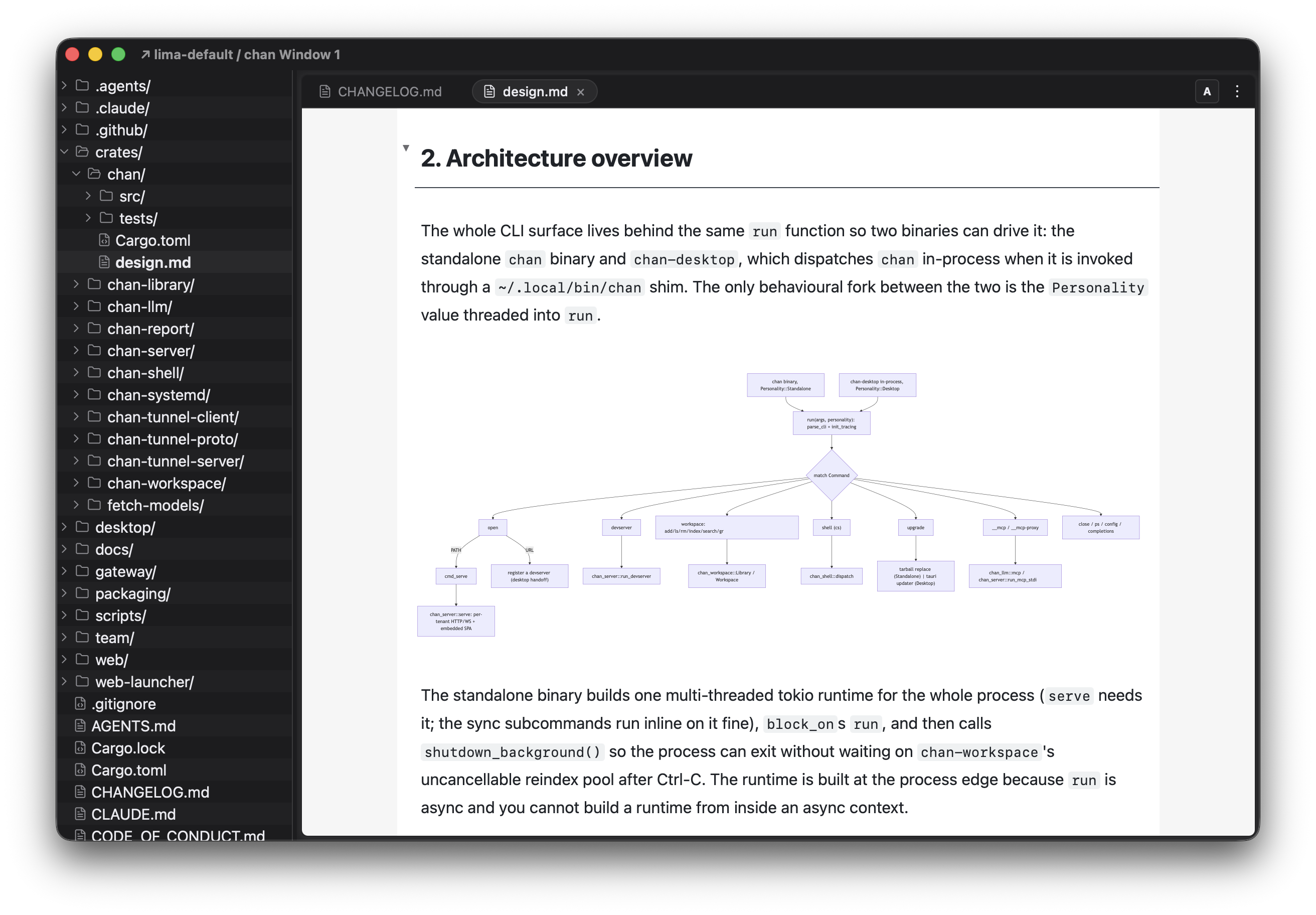
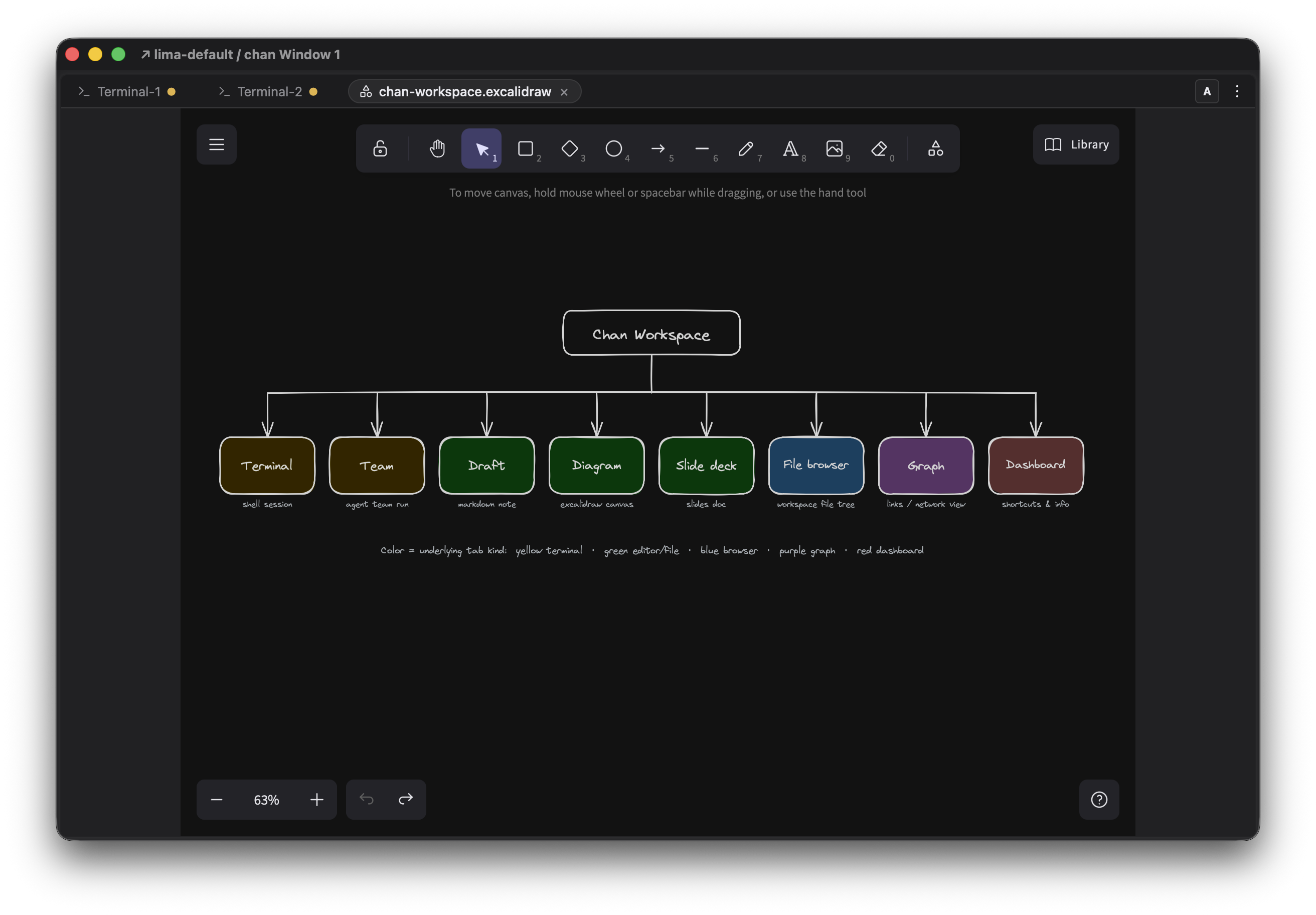
Chan has an embedded source code editor that renders Markdown live, diagrams included: fence a code block with mermaid to render a Mermaid diagram, or mermaid-to-excalidraw to render the same Mermaid source in Excalidraw style. .excalidraw files open directly on a drawing canvas.
Key habits in Markdown files:
- Type
@todayor@dateand press Space.@todayinserts today's date as a pill;@datealso opens a calendar to pick another day or format. - Type
@nameto search your contacts, or@@nameto commit a mention pill that links into the graph. - Type
[[to autocomplete links to files in the workspace;[[file#autocompletes headings inside the file. - Use
to embed media inline, including SVG images and.excalidrawdrawings.
Special frontmatter
Chan recognizes a chan: block in Markdown frontmatter. kind: contact turns the file into a Contact, a distinct node in the graph that mentions resolve against; the optional aliases list is what @@alias mentions match:
---
aliases: [jq, jdoe]
chan:
  kind: contact
---
Slide decks
kind: slides turns the file into a slide deck. A page break starts the next slide, and the page break is <hr class="chan-page-break"> alone on a line: type @pagebreak on an empty line and press Space, and the editor rewrites the line to that marker. The macro expands as you type, so a @pagebreak that reaches a file any other way stays plain text. The slides: block is optional: aspect_ratio takes "16:9" or "4:3", and zoom_factor scales the slide content (a number, default 2, or a percentage like "150%"):
---
chan:
  kind: slides
  slides:
    aspect_ratio: "16:9"
    zoom_factor: 2
---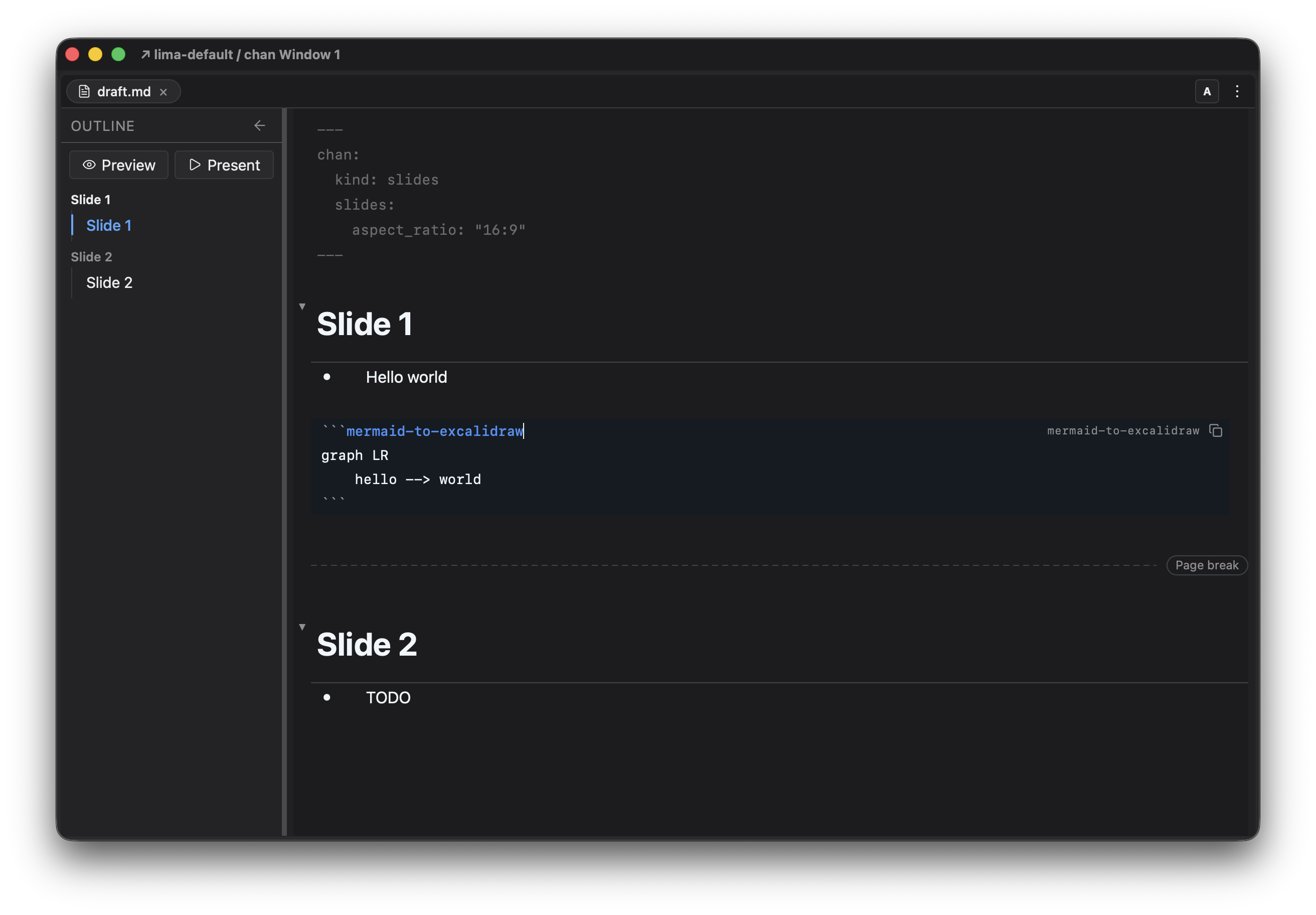
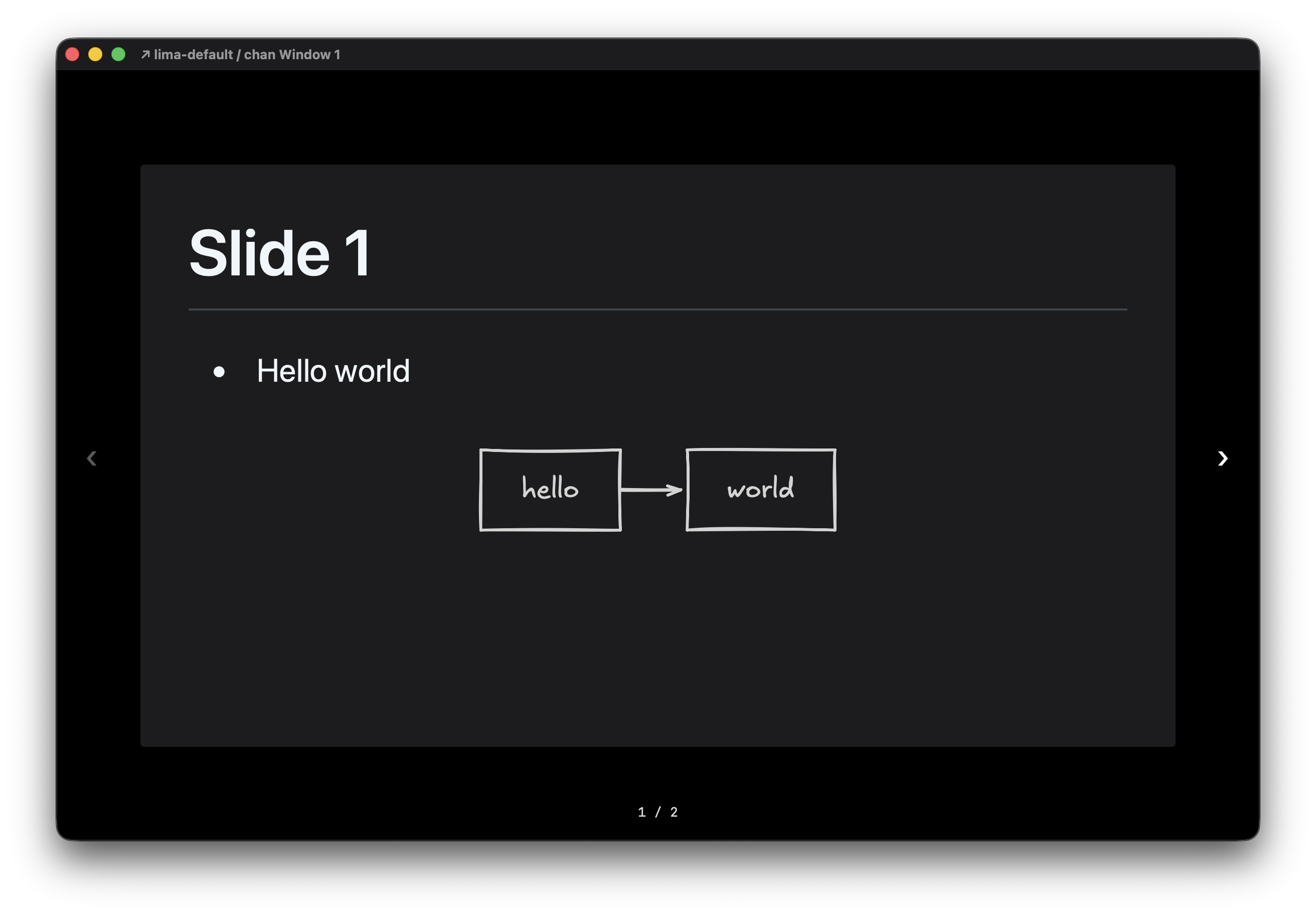
Chan's editor supports both mermaid and mermaid-to-excalidraw code blocks, plus it has Excalidraw embedded. You can open .excalidraw files via the file browser or cs open {path} in a workspace.
Markdown, slides, and JSON previews
Markdown renders headings, links, images, tables, and diagrams while you edit. Switch to source when you need the underlying syntax. For slide decks, use Preview slide deck to check the deck and Present slide deck fullscreen to present it; the default shortcuts are Cmd+Enter and Cmd+Shift+Enter on macOS, or Ctrl+Enter and Ctrl+Shift+Enter elsewhere.
Open a .json file to inspect its expandable objects and arrays in the structured view. Switch to source to edit the JSON text. Other text files use the source editor without a document preview.
Details and outline
Use the editor's Details control to inspect the file and its workspace information. For Markdown, show the Outline to navigate headings without scrolling through the whole document. Selecting a heading jumps to that position in either the rendered editor or source view.
Export to PDF
From a workspace terminal, export a Markdown document or slide deck through an open workspace window:
$cs export notes/design.md
$cs export decks/kickoff.md --out out/kickoff.pdf
The default output replaces the source extension with .pdf. Documents export as portrait pages; slide decks export one slide per landscape page. Images, Mermaid diagrams, and Excalidraw embeds render into the PDF. A connected workspace window must stay open to render the export; the resulting file is written back to the workspace, including on a devserver.
Use cs download out/kickoff.pdf to save the exported file onto the machine viewing the window.