Chan manual
Navigation
Arrange windows, panes, and tabs, and find actions with the command launcher.
Windows and workspaces
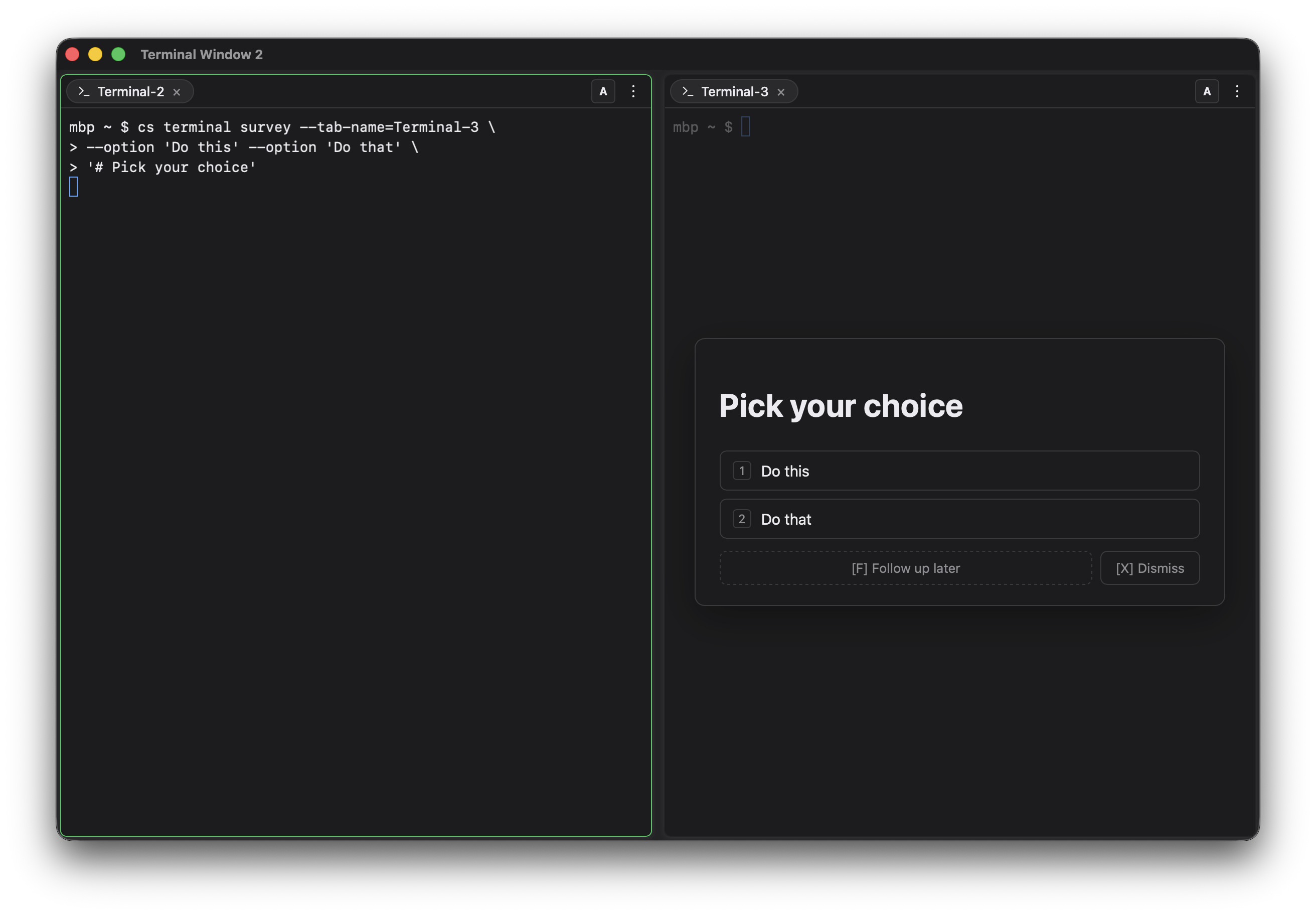
The main Computers window lists this machine and your devservers. Open a standalone terminal for shell work, or a workspace window for the editor, graph, search, and other project tools. Each workspace can have several windows with its own arrangement of panes and tabs.
Return to Computers to reopen a hidden window or create another one. A hidden window keeps its work running; closing its terminal tabs ends those sessions. Remote sessions can keep running while your desktop is disconnected.
Panes, tabs, and sides
A window contains panes; each pane holds tabs for terminals, files, and other apps. Use the pane menu or these default shortcuts to arrange them:
- Split a pane with
Cmd+/(split right) orCmd+Shift+/(split bottom) on macOS,Ctrl+/andCtrl+Shift+/on Windows and Linux,Ctrl+Alt+/andCtrl+Alt+?on web. Both also live in the command launcher. With a terminal focused on Windows or Linux desktop, plainCtrl+/goes to the shell; use the launcher or pane menu to split right. - Drag tabs across panes to rearrange them.
- Every pane has two sides, A and B. The A/B button in the pane's top bar flips between them (
Ctrl+`), so one pane can hold two sets of tabs. - Close a tab with
Cmd+Won macOS,Ctrl+Shift+Won Windows and Linux, orCtrl+Don any platform. - Close a window with
Cmd+Shift+Won macOS,Ctrl+Alt+Won Windows and Linux. On web, close the browser tab. - If a window refuses to close, the hidden side of a pane still has tabs: the A/B button flashes to show you where they are. Flip and close them first.
- Clicking the [X] close button in your window manager offers to hide the window (everything keeps running) or close it.
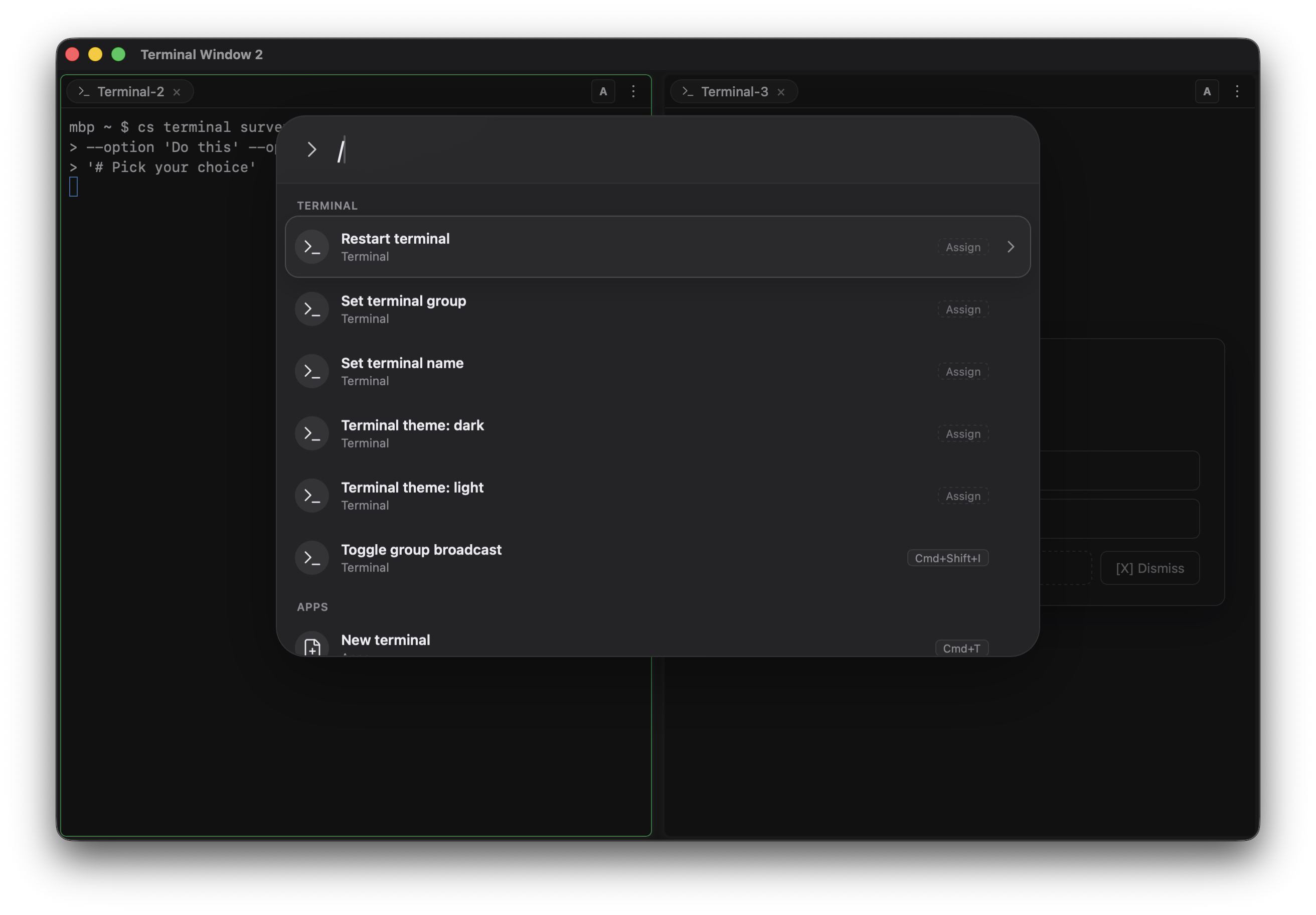
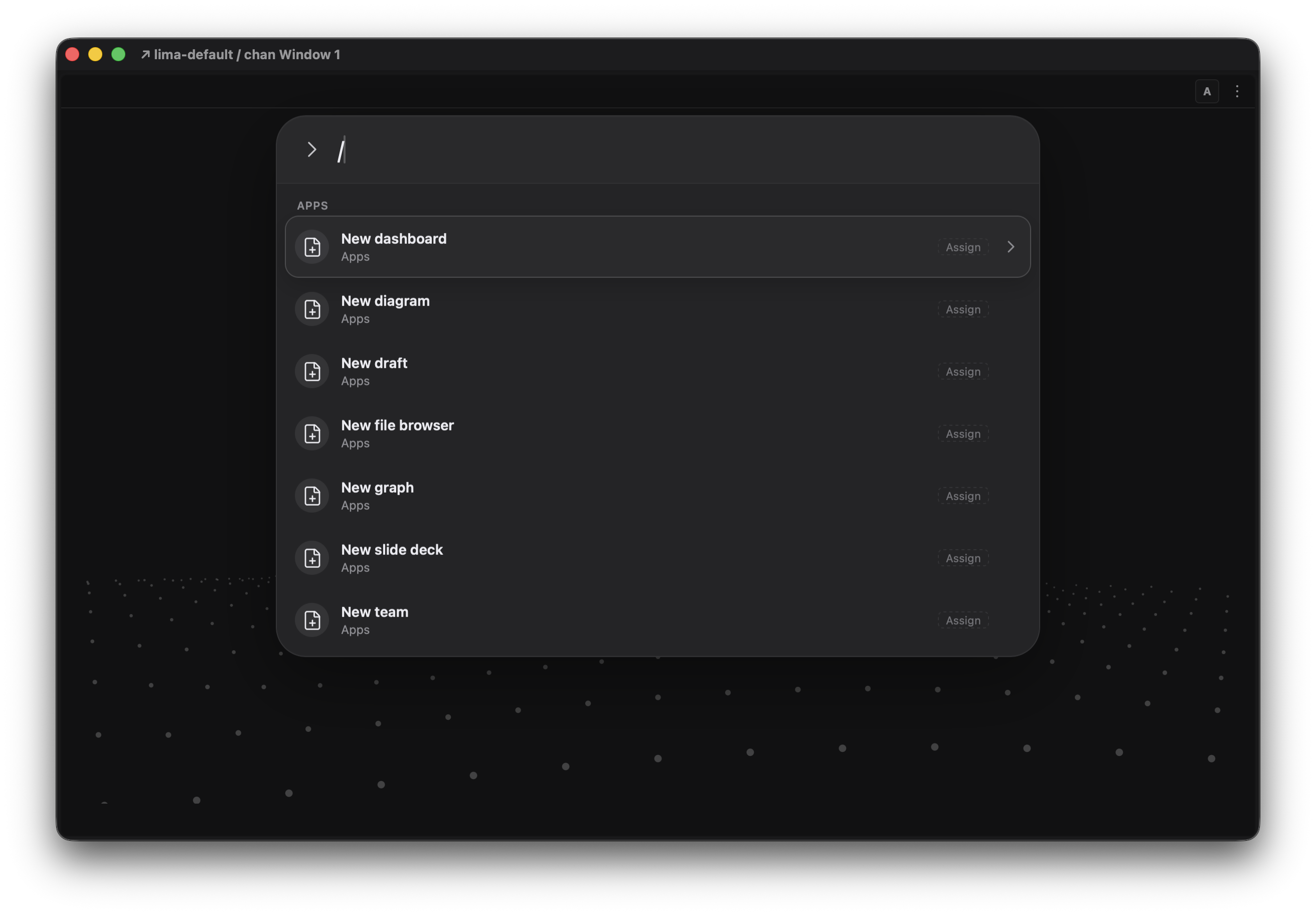
Press Cmd+K on macOS desktop (Ctrl+Alt+K on Windows, Linux, and web) to open the command launcher, or pick Commands from the pane's hamburger menu. Type an action to search, then select a result. Each command shows its current keyboard shortcut.
Choose a scope, Tab, Pane, Window, or Computers, to browse its actions. Tab commands follow the active app; Pane controls its layout and sides; Window controls the current window. Computers lets you browse available workspaces and windows, create a terminal or workspace window, and focus, hide, show, or close an existing window.
Find and change shortcuts
Commands display the shortcut for the platform you are using. Open Settings → Keyboard Shortcuts to see or customize bindings. The shortcuts in this manual are defaults; use the command launcher if you have changed them.